

ShowMe WorldCare End User Manual
General Features of ShowMe WorldCare
Icons
Icons are used in many places throughout ShowMe WorldCare.
| Icon | Description |
|---|---|

| The Home menu icon returns a user to their landing page. The landing page varies by user role. For example, some users may land on the Jurisdiction Review page while others may land on Staging, depending on their specific duties. |

| The blue question mark indicates context-specific Help is available. This icon opens the generic WorldCare user manual at the appropriate section. |

| This icon indicates that an Instant Export is available and will open a pop-up for the user to make selections related to export options. |

| ShowMe WorldCare is not utilizing the Admin Call Log feature. |

| This icon appears near date fields and indicates that clicking it will open a date range option. |

| This icon opens a calendar for date selection. (Dates can also be entered directly into a field.) |

| Person record |

| Condition record (sometimes referred to as disease incident record) |

| Outbreak/investigation record |

| Group event record |

| Alerts |

| Type of person record
|

| Left: Drill-down button to access a dictionary to choose from options Right: Clears dictionary selection from the field |

| Network diagram |

| Version history – shows whether any different versions of the person exist (e.g., name changes) |

| Condition history – shows if other conditions were previously selected for the record |

| Process status history – shows when a new process status was assigned and by which user |

| Resolution status history – shows when a new resolution status was assigned and by which user |

| Optional task functionality not used in ShowMe WorldCare. Refer to the Tasks section of this manual for more details. |

| Electronic Filing Cabinet (EFC) – allows attachment of records. See Electronic Filing Cabinet section of this manual for more details. |

| Create album – allows creation of an album without first opening the EFC |

| Print All opens a selection box so the user can indicate what exactly to print. After making selections, click OK. This will open the selected document in a new print view window from which the user can Print the information or Download it as a PDF. |

| Letter repository – Letter templates can be stored here for generation of letters within the system. |

| The magnifying glass indicates that an audit table is available. Different audit tables appear at different locations within the system. Fields at the top allow for selections of what information to view. Clicking on a row in the Transactions data will reveal additional information in the Changes table at the bottom of the Audit Review screen. Generally, the Changes table shows the Original value and the Current value, detailing a change that was made. The Transactions row is stamped with the User, IP Address and Date/Time associated with that action. 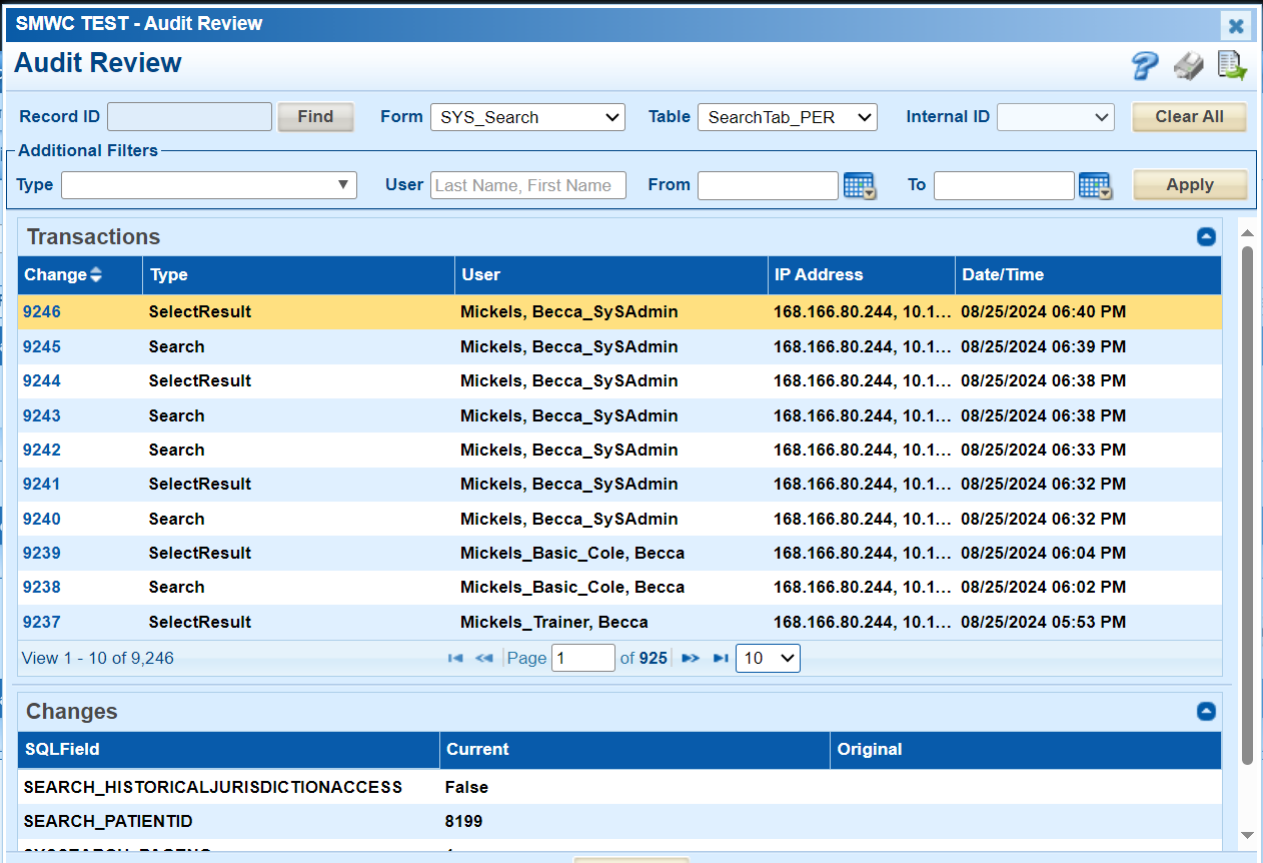
|
Electronic Filing Cabinet
When the Electronic Filing Cabinet (EFC) icon is clicked, a Filing Cabinet pop-up opens. Supplemental information such as PDF or Word documents containing medical reports or forms, image files such as x-rays, etc., can be attached to the submitted record. Executable files cannot be attached.

Documents must be added to an album. Documents related to one another should be placed in the same album. For example, x-rays, lab tests, case reports, etc., from the same medical visit should be stored together in an album.
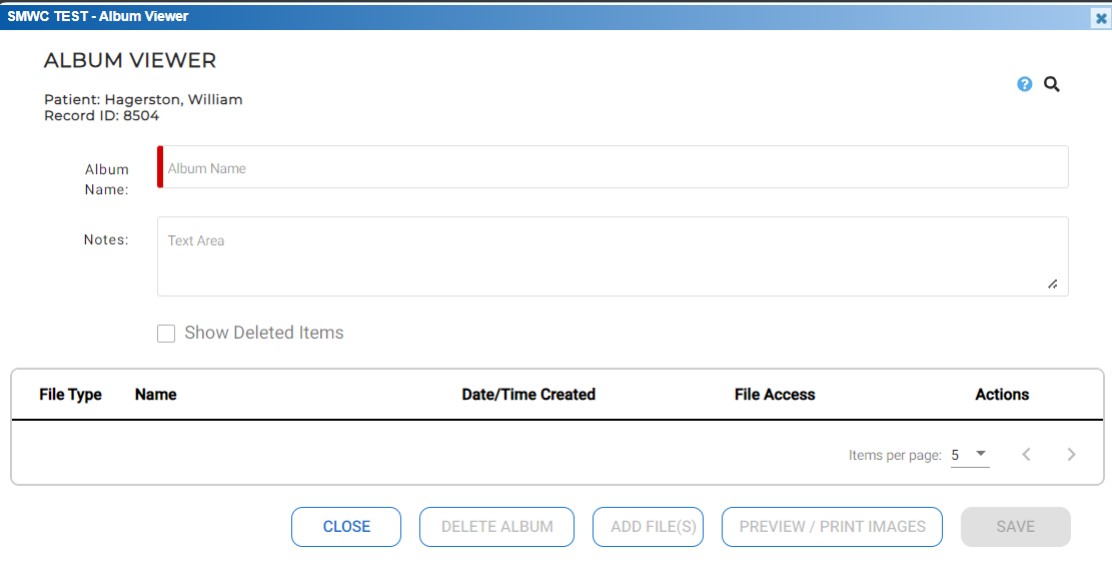
- Click New Album to add an album or select an existing album from the list of attached records and click the Open button in that album’s row. This will open the Album Viewer screen.
- For new albums, enter a Name for the album consisting of letters, numbers and spaces. Other characters will not be accepted.
- The Notes field can be used to provide additional information and will be displayed in the Description field of the attachment list.
- Click Add File(s).
- Click Browse Files to search for the files that need to be uploaded.
- Multiple files can be selected.
- Click the red X to remove any file selected in error.
- Review selected file names to ensure that no duplicate file names are listed as this will result in duplicate submission of the document to ShowMe WorldCare.
- After ensuring that the correct file names have been selected, click the Add Files button to begin the actual upload.
- If files are successfully uploaded, they will appear in the table in the Album Viewer.
Previously attached documents can be searched and viewed.
- Existing attachments can be sorted by either Date Received or Date of Message by selecting the appropriate radio button.
- The From, To, Name, Type and Description fields can be used to search/filter existing attachments. Click the Search button to run the search. The Clear button can be used to remove any previously entered information but will not change checkbox or radio button selections.
- The Preview/Print Images button will open an Image Preview with all images displayed. The user can then select and print only the desired images.
- If a previous album is listed, click the Open button at the right of the album to open the Album Viewer. Then click on the file Name to open the file.
The New Form button is used to select additional forms that could be used to provide further information.
Previous and Saved Searches
A very useful feature of ShowMe WorldCare is the ability to save searches and to re-run previous searches. Clicking on the Previous Searches item on the menu bar opens three possibilities.

Previous Search: This option will re-run the most recently performed search.
Saved Searches: On certain screens within ShowMe WorldCare, users can save a search. This feature is available on both the Search screen and Jurisdiction Review. After entering search criteria, enter a name in the Provide Search Name box and click Save Search. (An example is shown in which a search named “Assigned_COVID” is being created on Jurisdiction Review.)

The newly created Assigned_COVID search now appears on the user’s Saved Searches list. The search can be run by clicking the magnifying glass icon at the right. This can be a very useful feature for users who need to monitor certain record types on a regular basis.
To remove a saved search, click the red X at the right to delete it from the list.

Search History: While Previous Search returns only the single most recent search, Search History makes a larger number of recent searches available.
