

ShowMe WorldCare End User Manual
Entering Person Records
After a search has been completed, the New Person button will be enabled in case the person is not already in ShowMe WorldCare and needs to be created. Clicking the New Person button will open a new Person record. Due to the length of this type of record, the screenshot extends over two pages but in the system the Person record is one continuous page.
Following the screenshots are sections describing some of the different fields and features of the Person record.


Mandatory Fields
Any fields that are shaded a different color, such as Last Name and First Name, are mandatory fields. Mandatory fields can also be identified by the * next to the field name.
Anonymous Records
Public health agencies sometimes receive records without a last name or first name. Clicking the question mark (?) icon to the right of the First Name will provide an anonymized name. The First Name will always be Anonymous. The Last Name will be numbers representing the date and time down to the second that the anonymous function was utilized.

Multiple Names, Prefixes and Suffixes
In the United States, it is most common for individuals to have three names: a first name, middle name and last name. However, the WorldCare product is also used in some other countries in which the use of additional names is common. Thus, Third Name and Fourth Name fields are available in case they are needed.

Please note that these are NOT alias or multiple identity fields and should not be used for purposes such as documenting a maiden name, also known as/AKA names, etc. If that information is entered here, those records will not return correct results when searched. Entering of multiple identities or aliases will be covered in a later section.
A Name Suffix such as Jr., III, etc. can be entered as well as a Name Prefix such as Mr., Ms., etc.
Identification Number Field (DCN)
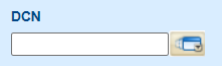
ShowMe WorldCare uses DCN as the default external ID number. However, other external ID number types are available. To access the other types of external IDs, click the drill-down button to the right of the DCN field.
This will open the Additional Identifiers pop-up. To add an additional ID# for the person record, first click the New button at the bottom of the screen before filling in the information.
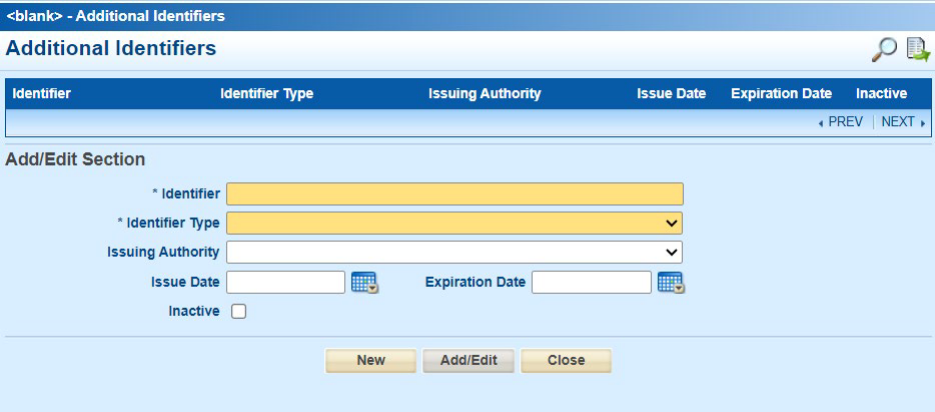
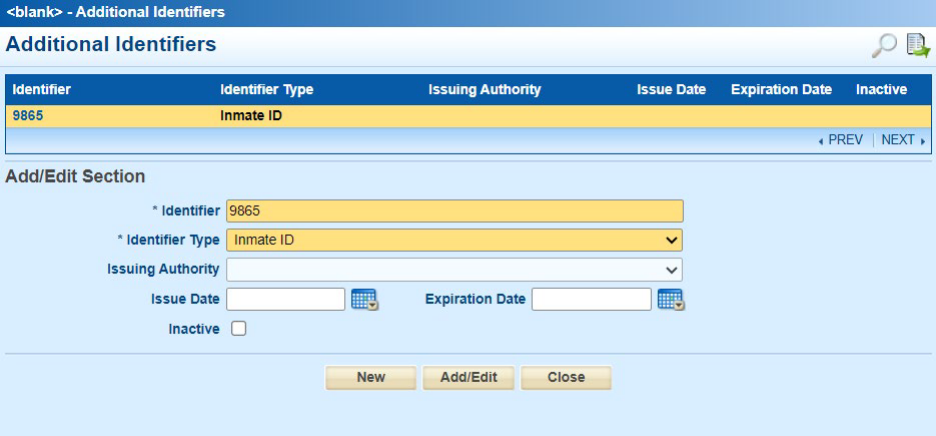
The actual ID number must be entered in the Identifier field and an option selected as the Identifier Type. Currently, the only other Identifier Types are Inmate ID and Source Person ID. Other identifier types could be added in the future. The additional fields can be added if available. After entering all information, click Add/Edit to add the new information to the record. The new information will appear in a gold bar at the top of the screen. To select a previously entered additional identifier, click on the identifier number in the first column and click Add/Edit.
Date of Birth/Age
The person’s date of birth should be entered in the DOB field. The Age should calculate based upon the difference between the current date and the DOB. Months and Days are set to appear only for individuals under the age of 2 years. Age can be manually entered if that information is known but DOB is unknown.
Address Entry
Addresses MUST be entered using United States Postal Service standards as detailed at USPS.com. Failure to adhere to these standards will prevent the system from correctly geocoding the address as well as automatic assignment to the correct jurisdiction. Please do NOT enter other types of information such as ATTN to a different person or passport numbers in the address fields as these will prevent geocoding.

In most cases, if a valid address is entered, only the Address Number & Street, City, and State (set to MO by default) must be entered. After the record is saved, the geocoder will complete the Zip, Census Tract and County of Residence for valid addresses. Failure of these fields to auto populate indicates that the geocoding attempt failed and the user should double check to ensure that the address is correct.
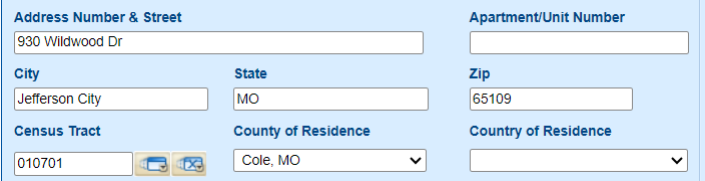
The Zip code field only displays the first 5 digits of the Zip code. However, additional +4 digits are stored in the system and can be viewed on reports (to be detailed later in this manual).
Locations that are on the edge of counties may not geocode correctly. If this occurs, users can manually update the County of Residence field. County of Residence must be blanked out first and the record saved before the new county is selected.
SMWC Tip: Be careful when changing the County of Residence field! If it is changed, a prompt will appear asking if the case should be reassigned to a different jurisdiction. If the user indicates that it should be reassigned, it will be reassigned immediately. If the user does not have access to the new jurisdiction, they will no longer be able to access that record. If the prompt appears, the user should not reassign the jurisdiction at that point but should first finish any other work they need to do on the record. Then they can go to the Administrative tab and reassign the case by selecting a different agency in the Jurisdiction drop-down field.
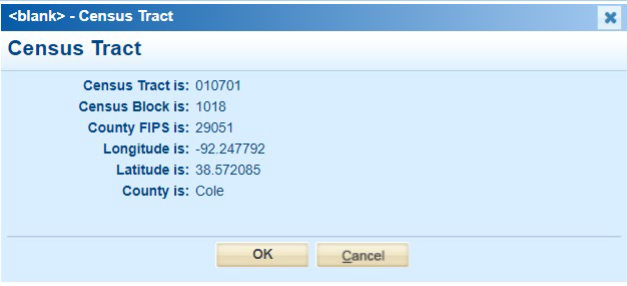
To view additional details about the address, click on the drill-down next to the census tract field.
Country Fields
The Country of Birth field contains some additional options that are not available in other country fields. This is because some countries no longer exist but individuals may have been born in those locations before such changes occurred. Other county fields such as Country of Residence only contain countries that currently exist. Date of Arrival may be entered for individuals who came to the United States from elsewhere.

Other Contact Information
Several other types of contact information may be entered on the Person record such as various types of phone numbers, email address and other electronic contact information. If the person’s Work/School Location is known, the location can be selected from the Location directory by clicking on the first drilldown button to the right of that field. (The second drill-down button clears the field.) If the specific work or school location is not in the Location dictionary, please contact the ShowMe WorldCare Help Desk to add that entry. A work or school contact may also be entered.

Current Gender
The only field relating to gender in the Person record is the Current Gender field. This field relates to the person’s current gender identity and thus contains options beyond Female, Male and Unknown. Additional details on birth sex and other gender information can be entered in Condition Records on the Person tab, which will be detailed later in this manual.
Other Person Record Fields
Several other fields relating to a person are available for entry, including Marital Status.

A person may have multiple Medical Record Numbers or MRNs, so multiple entries can be added or viewed by clicking on the View drill-down button. The New button must first be clicked to add a new number/source.

Patient’s Parent/Guardian name can be entered but more details about family members may be added in the Family Members section (described in more detail later in this manual).
Occupation Setting is the type of occupation in which a person works, while the Occupation is the specific type of job the person completes within that setting. For example, the Occupation Setting may be Childcare / Daycare / Preschool but the person’s occupation may be Cook / Food Preparing Worker. More details can be provided in the Describe/Specify and Occupation Location free text fields. Additionally, some conditions have provided more detailed occupational questions within the condition record.

Person Status indicates whether the person is Active, Deceased or Unknown. If Deceased, Date of Death should be entered.

The Alerts button allows various types of alerts to be added to the patient’s record and pushed to any associated records.

Person Record Connections
The Person record contains three tables that reveal connections to other records.

The first table lists any condition or outbreak records attached to the Person record. In this example, a new person was entered and no condition records have yet been added so nothing appears.
Please note that although ALL users can view Person records, only records that fall within the user’s condition/jurisdiction security groups will be displayed within the record. For example, if a user only has access to general communicable diseases and the person only has HIV, which is not included in the general communicable diseases group, the system user would see a blank table as above because the person has no conditions or outbreaks that fall within their access.
If the person did have a condition or outbreak that fell within the user’s access, it would be displayed as seen in these screenshots. Clicking on the ID number will open the person’s Condition or Outbreak record.


The second table allows any Associations to other persons entered in ShowMe WorldCare to be viewed. Users can click Show All to see all associations or choose one of the more specific types (Patients, Contacts or Family Members). In this screenshot, the patient is linked to Georgina Jetson, who is a family member (indicated by the F record type) and has two conditions (indicated by the P record type). Jane Jetson is a contact to this patient (indicated by the C record type).

The third table allows viewing of any Group Events to which the person is linked. Group Events will not be used for the initial ShowMe WorldCare implementation but will be used later for aggregate condition reporting. More information about working with Group Events will be provided closer to that transition.

Adding a Person’s Family Members
The last section of the Person record allows entry of Family Members to the patient.
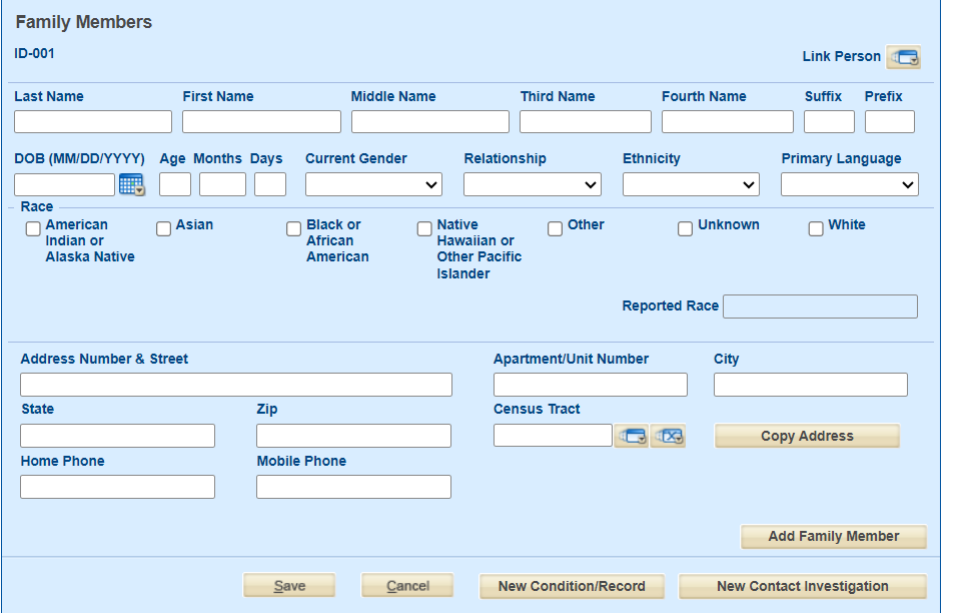
BEFORE ENTERING information, ALWAYS click the Link Person button at the right. This will allow a search of all existing persons in ShowMe WorldCare. If the person is found, simply click OK in the Select a Person pop-up to link them as a family member.

If the family member is not found as an existing person in ShowMe WorldCare, proceed with entering any known information into the family member section. If the address is the same as for the initial patient, the Copy Address button can be used to reduce duplicate data entry.\

Once all known information has been input for the first family member, click Add Family Member to input any additional individuals (remembering to search using Link Person first). This is a repeating section and there is no limit on the number of family members that can be entered.
Once all family members have been input, click Save to save the record. Any family members entered will now have their own Person records and can be found on the Person Search screen.