

ShowMe WorldCare End User Manual
Creating Contact Investigation Records
Contact investigation records can be created from multiple places within ShowMe WorldCare.
Creating a Contact Investigation from Another Person’s Condition Record – Epidemiologic Tab
Contact investigation records will be created automatically when an individual is added as a contact to another person’s Condition record on the Epidemiologic tab. As an example, suppose a patient named Suzy Hagerston reveals during an interview that her husband, John Hagerston, was exposed to her when she first became ill. John needs to be entered as a Contact on Suzy’s condition record. Most conditions contain a Contacts section near the bottom of the Epidemiologic tab.

SMWC Tip: Best practice is to save the original patient’s condition record using ALT+S before adding a contact. This ensures that any information entered on the condition record is not lost in case the user selects other records from the contacts pop-up.
Click either the Add button in the lower right corner of the section or the ID number on the blank row to add the first contact. This will open a Create New Contact screen. (The format of this screen appears different than most ShowMe WorldCare screens. This is a new user interface design for the WorldCare product that has not been completely pushed out to WorldCare clients.) There is a scroll bar within the pop-up with more sections available below those first shown.
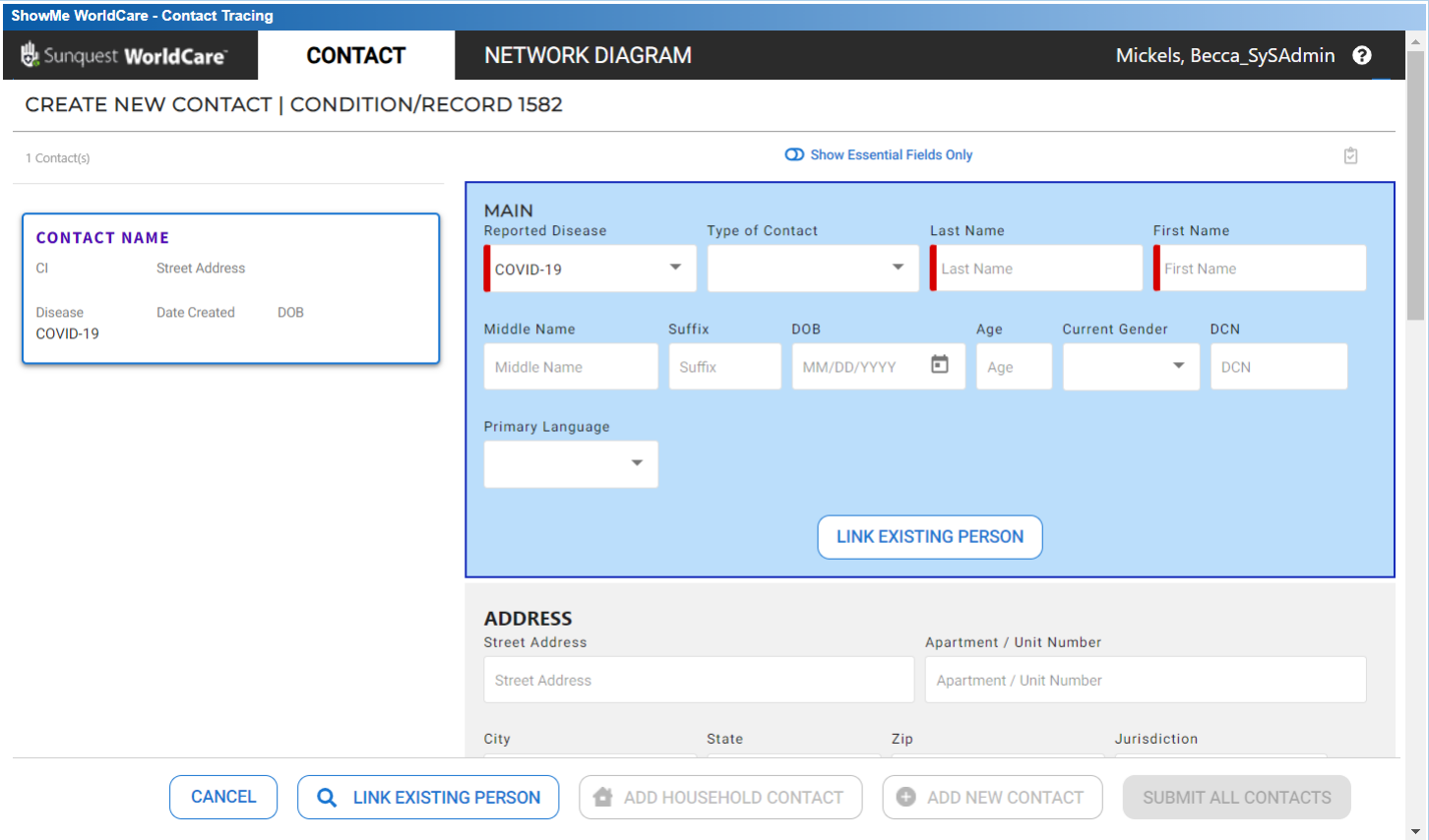
Before entering a new contact, first search for the person by clicking the Link Existing Person at the bottom of the Main contact section or at the bottom of the pop-up window. In this example, no existing records are found for John Hagerston, so the user would click Cancel and enter John’s information in the Create New Contact screen. The fields on this screen are briefly described below.
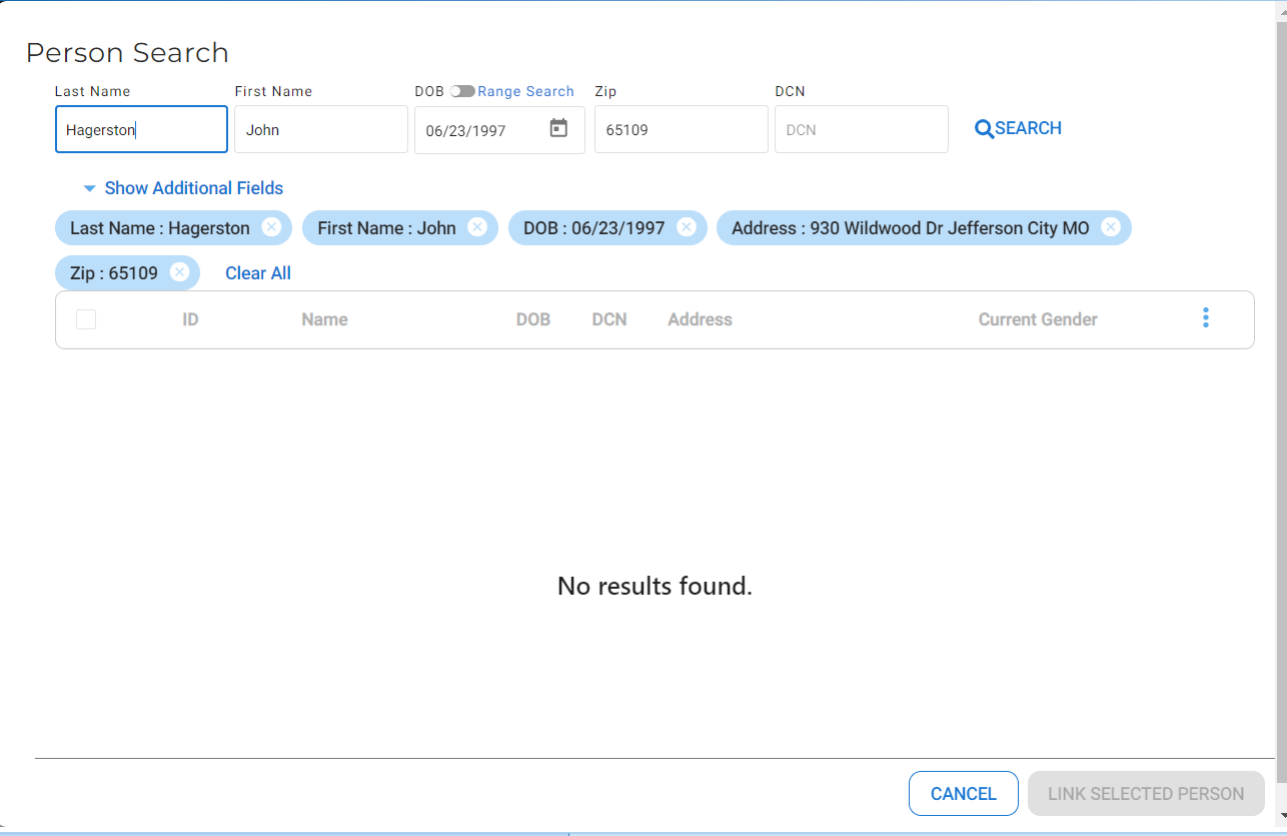
Main
- Reported Disease: This field will auto populate based on the condition record from which the contact is being created.
- Type of Contact: Options currently include Case, Casual Contact, Close Contact, Healthcare Delivery Professional, High Risk, Hospital Contact (Non-Healthcare Worker), Household, Incoming Traveler/Visitor (person not travelling), Not a Contact, OPV recipient, Other, Person in Quarantine, Sexual, Travel Contact (contact during travel) and Traveler. These options may be modified in the future.
- Last Name/First Name/Middle Name/Suffix: Name of the contact should be entered here.
- DOB/Age: Contact’s date of birth must be entered here. Age will calculate if DOB is entered.
- Current Gender: The contact’s current gender can be entered.
- DCN: The contact’s DCN can be entered if known.
- Primary Language: The patient’s primary language can be selected from the list.
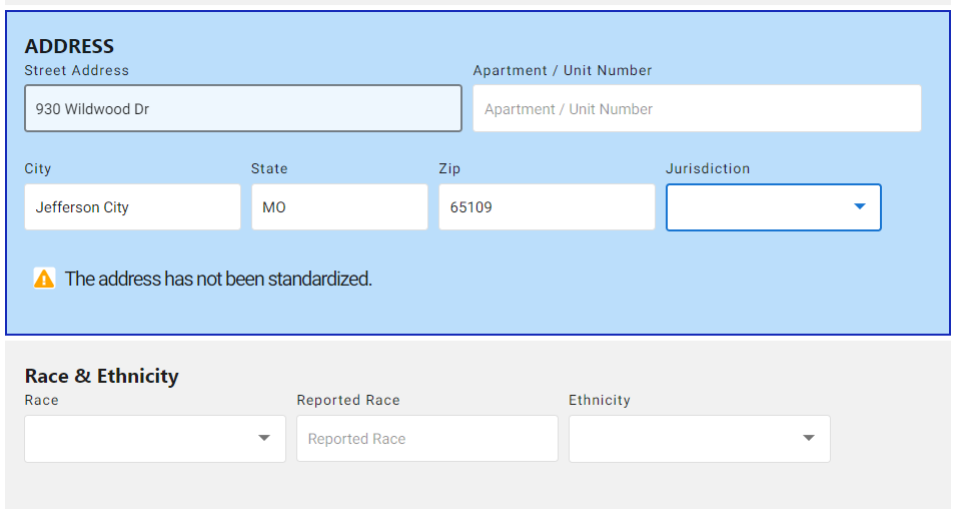
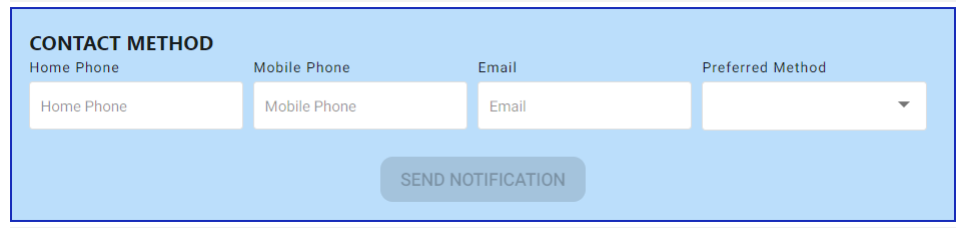
Scrolling through the pop-up will allow entry into other sections. The contact’s address, race, ethnicity and contact methods can be entered. Note that a warning appears if the address has not been standardized.
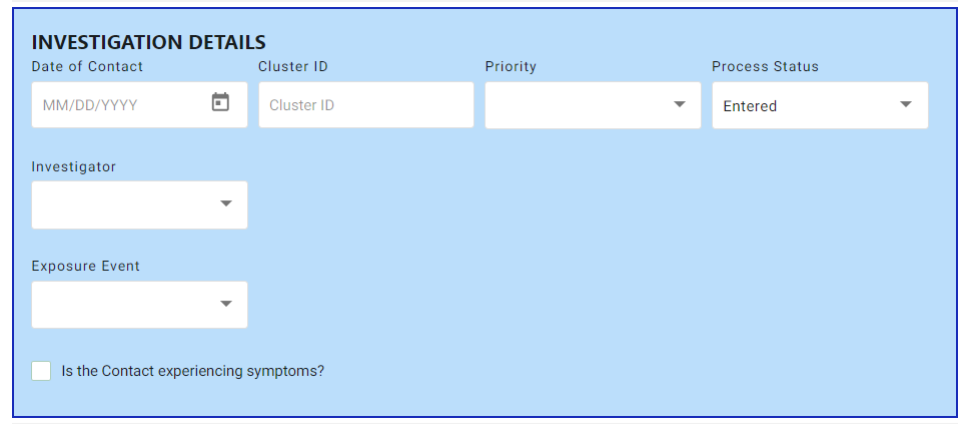
In the Investigation Details, the Date of Contact with the initial patient should be entered. Cluster ID can be assigned if needed. Priority of High, Medium or Low can be selected. Contact investigations have a Process Status with associated workflows. (Please refer to the Process Status, Workflows and Locking Records section of this manual.) An Investigator can be chosen from a drop-down list. The Exposure Event field will not be used for most conditions. (It links to an exposure event section which is not being used in ShowMe WorldCare for any condition except Lead. The exposure event section is very brief and most programs opted to create more detailed custom sections.)
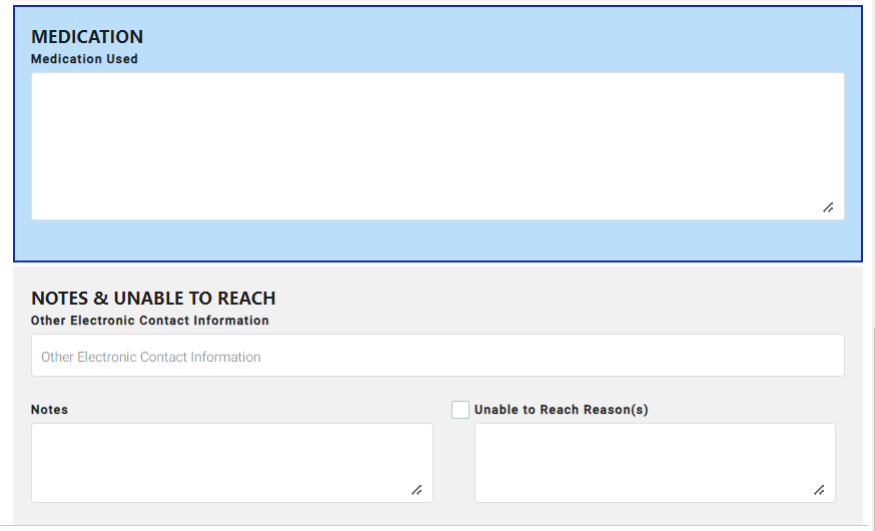
Two additional sections allow documentation of Medication and contact attempts. However, once the contact investigation record is generated, more detailed sections may be available, as will be explained later in this section of the manual.
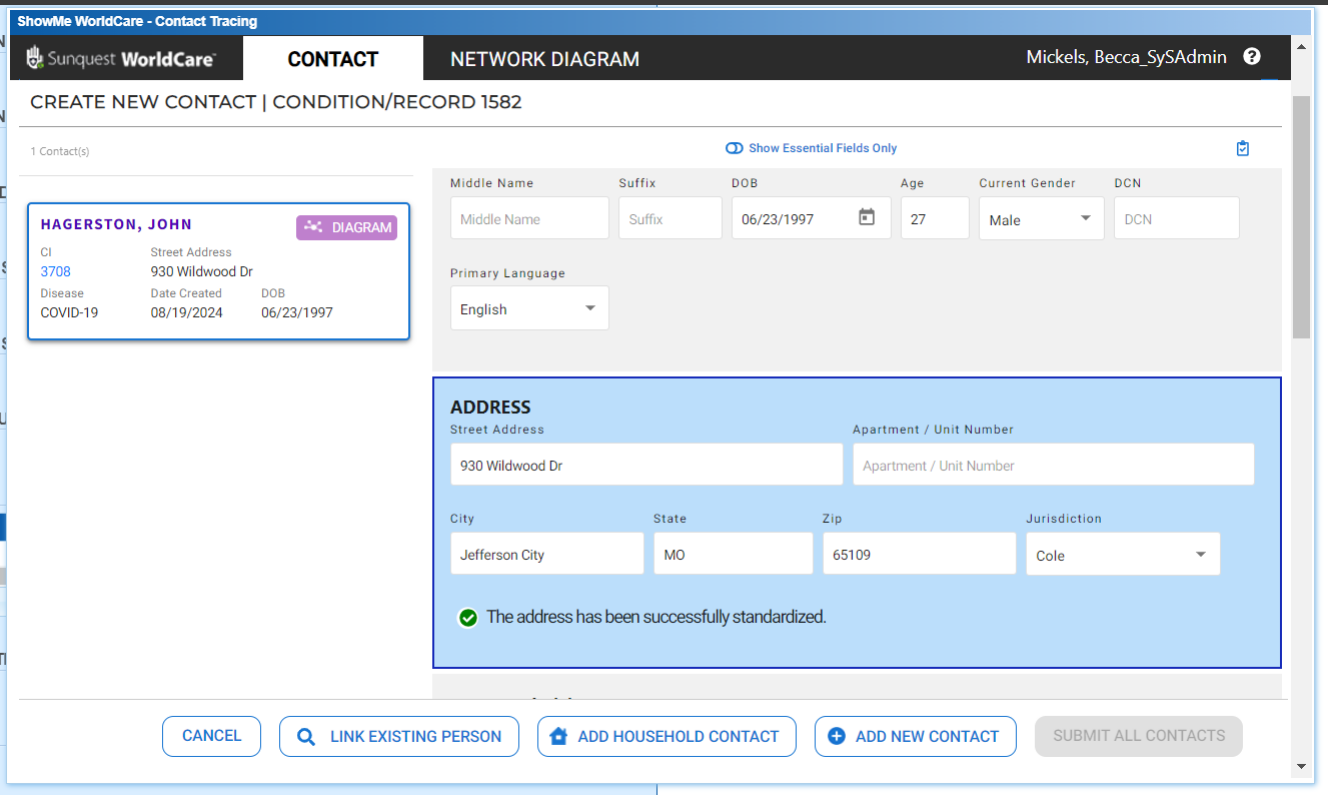
After all basic information about the first contact has been entered, additional contacts can be entered by clicking the Add New Contact button at the bottom of the pop-up. As each contact is entered, their information loads into the contact cards along the left side of the screen. If an extra card is added that is not needed, click on the black and white “X” in the upper right corner of that card to delete it. Once all contacts have been entered, click the Submit All Contacts button at the bottom of the pop-up.

Once any contacts have been submitted, note that the card on the left side of screen is updated with a Contact Investigation (CI) number and the Diagram icon appears in the upper right side of the card. Clicking on the purple Diagram button will open the Diagram. Clicking on the CI number in the card will open that Contact Investigation record. (If the original person’s condition record was not saved prior to entry of the contacts, unsaved data will be lost if the user navigates to a new record.)
Creating a Contact Investigation from Person Records
Users can also create new contact investigations from the Search screen, Person tab. Suppose John Hagerston from the previous example eventually develops symptoms of COVID-19 and realizes he exposed his new, William Hagerston. William is not found in ShowMe WorldCare so a person record is created for him. Once his Person record is saved, a new contact investigation record can be created by clicking the New Contact Investigation button at the bottom of the Person Record.

When contact investigation records are created from the contact’s person record, the user MUST go to the Administrative tab on the contact investigation record and choose the appropriate record to which the contact should be linked. Click on the drill-down button next to the Link to Condition/Record box.

Search for the person who exposed the contact, in this case John Hagerston. Click on that person’s Disease Incident ID and click Select.

This creates a link between the two records. After saving William’s record, the View button could be used to open John’s record for review in a pop-up window.

Creating a Contact Investigation from Search – Person
Users can create new contact investigation records directly from the Search – Person screen. For example, John Hagerston reports that he exposed another nephew, Brad Hagerston, to COVID-19. Once a Person record has been created for Brad, a contact investigation can be created by clicking the New Contact Investigation button at the bottom of the screen. When contact investigation records are created from the Search – Person screen, the user MUST go to the Administrative tab on the contact investigation record and choose the appropriate record to which the contact should be linked, as described in the previous section.
