

The Family Care Safety Registry (FCSR) helps protect seniors, children, and the disabled. We do this by conducting background screenings on persons who will work in long term care, child care, or personal care. Screenings can only be conducted on persons who have registered with the FCSR. If you are applying to work or volunteer in one of these fields, you must register. You will provide personal information and agree to background screenings as defined in state law. You will also pay a one-time registration fee of $16.00.
Registering online is faster than by mail. Instead of the cost of a stamp, a $0.57 processing charge will be added to your fee.
To register online you will need:
- Internet access
- Your Social Security number
- Your email address
- A credit card or debit card
The FCSR team will review your registration and may ask for a copy of your Social Security card or other verification.
The online system works best when you use a laptop or desktop computer and when you use Google Chrome as your web browser.
Access the FCSR Background Screening and Employment Eligibility System for online registration.
From the main page, click the Registration menu to begin.
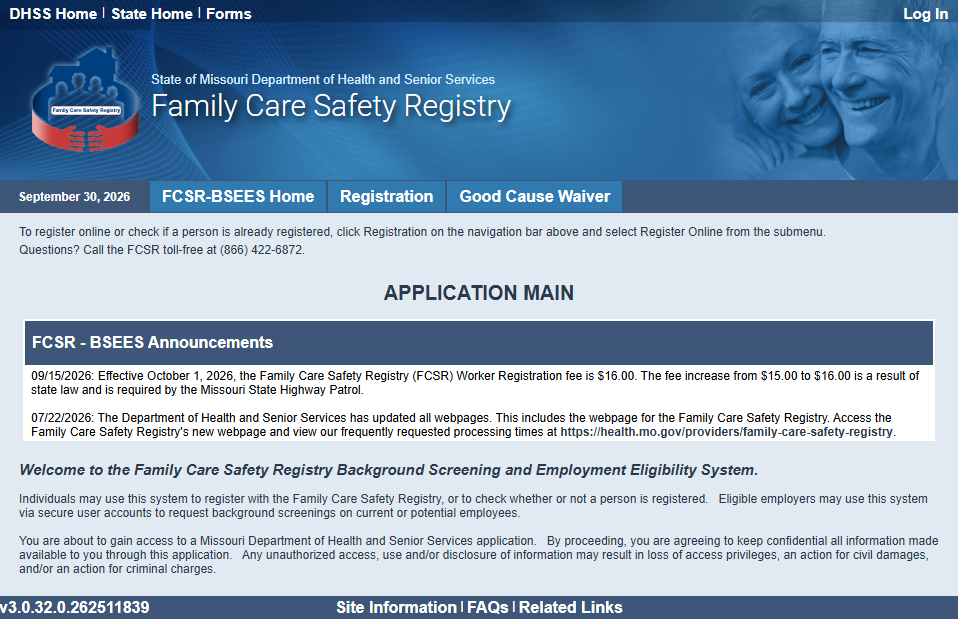
From the submenu, click Register Online.

Read the Welcome to Registration Information. When ready, click the tab for Is A Person Registered to continue.
Enter your Social Security Number twice (one time for each row). The entry fields for each part of a Social Security Number will be masked as you move to the next field. Click the “sleepy eye” icon to unmask a row at a time. When you finish with your Social Security Number, click the checkbox in the CAPTCHA code field to confirm you are not a robot. You may see a selection of images to further prove you are not a robot. After completing the CAPTCHA challenge, a Search button will appear.

Click the Search button.
NOTE: You will see a Messages section on each page. Informational messages will be in black text. Error messages will be red.
You should be notified that your Social Security number was not found.
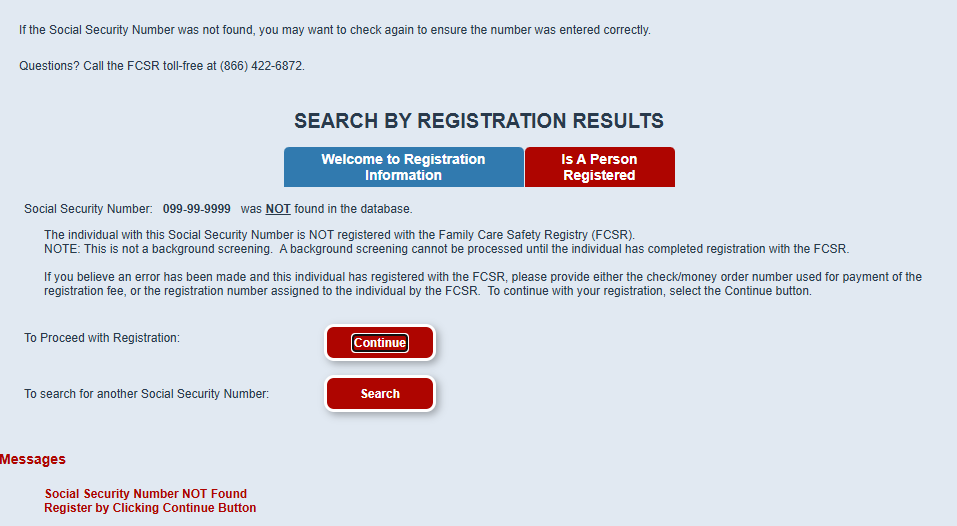
If your Social Security number was found, you may already be registered. If your Social Security number was found and you do not believe you registered in the past, call the FCSR at 866-422-6872.
Click the Continue button. You will see a screen to enter the name of an employer who asked you to register. Either enter an Employer Name or select from the choices for Select if No Employer.
To enter an employer name, search either by Begins With or Contains. Begin typing part of the employer’s name. As you type, a drop-down list will appear. Select an employer name from the drop-down list.

Click the Search button.
You should see a list of one or more employer names and addresses after clicking the Search button. If the correct employer is shown, click to check the box by the employer’s name.
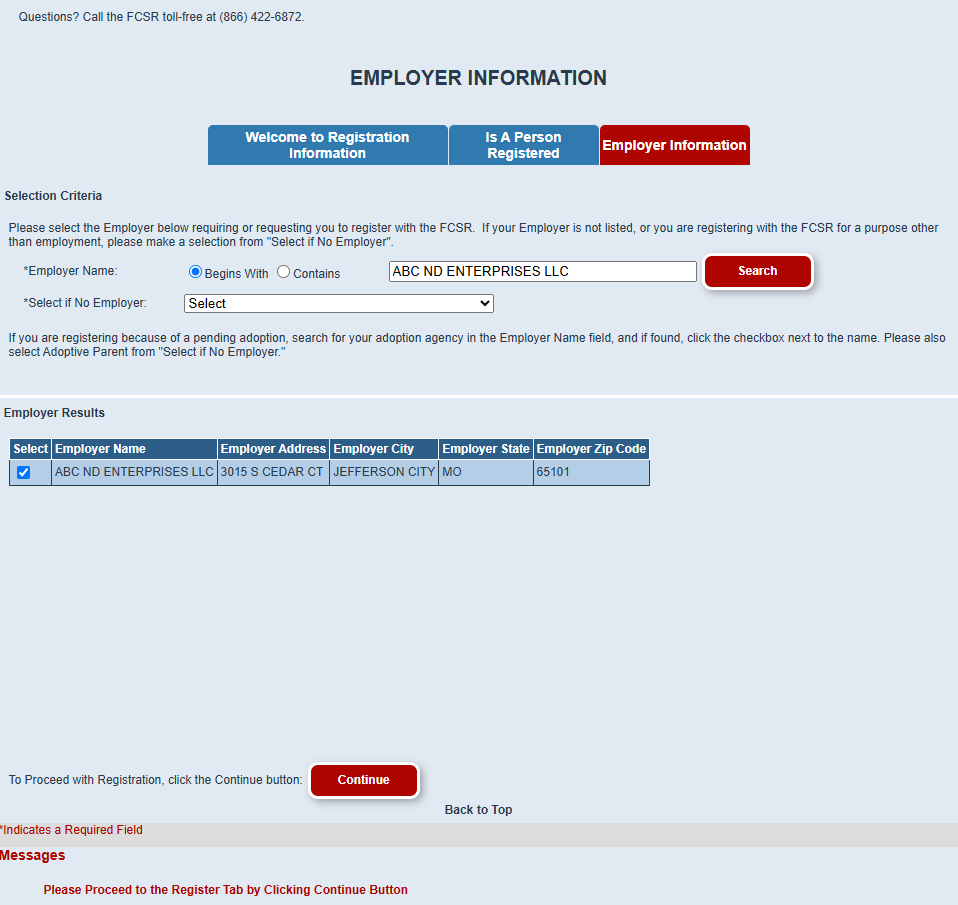
If the employer is not found in the database, or if you have another reason for registering, choose from the Select if No Employer list.

NOTE: If you are registering to be screened as an adoptive parent, please search for the adoption agency in the Employer Name field and choose Adoptive Parent from the Select if No Employer field.
Click the Continue button after you have selected either the Employer Name or the Select if No Employer field (or both if applicable).
Enter your personal information. First, select one or more Registration Type(s) by checking the appropriate box (or boxes). Depending on what you select, additional checkboxes may appear.

Check only the box or boxes that best describe your reason for registering at this time. For example, if you applied to work in a Long-Term Care Nursing Facility, do not select Foster Parent or Child Care.
Next, enter your personal information.
Click the Add Other Name button as needed to add more entry fields for any other names you have used. Other names include a nickname, birth or married name.

NOTE: Be sure to add a line to enter your birth name if different than your current name.
Finally, enter your contact information.
Click the Continue button after entering all required information.

A section for Standard Address Results will appear. Click to check the box by the line that best reflects your address. You must select one line. Select Use Address Entered Above if the standard address result does not reflect your mailing address.

Click the Save button.
You are asked to confirm the email address entered is one where you can receive your FCSR notifications. The email address should belong to you, not to your employer or another staff member.
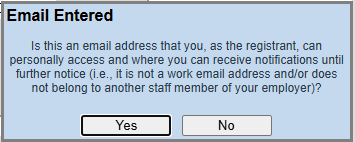
Click Yes if the email address entered is one you access.
or
Click No to change the email address in your Contact Information now.
Confirm all information shown is correct.
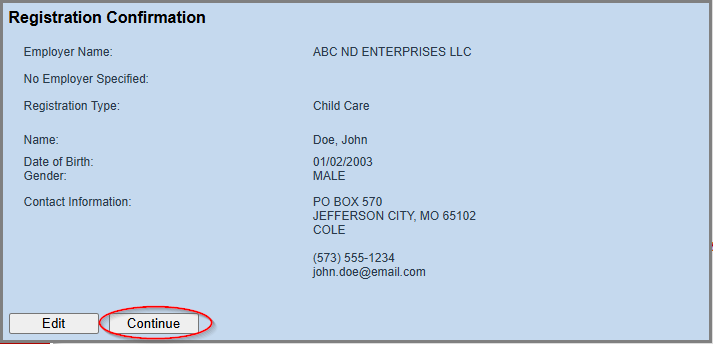
Click the Edit button if there is an error.
or
Click the Continue button if your information is correct.
Carefully read the Registration Agreement.
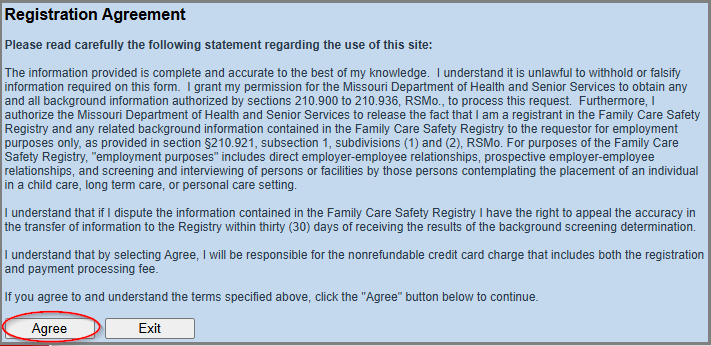
Click the Agree button if you agree to the statement. Clicking the Exit button will end your registration. (If you end your registration, you will have to start over.)
Enter your payment information.

Click the Continue button after entering all required information.
or
Click the Cancel button to end your registration.
Confirm the payment information shown is correct.
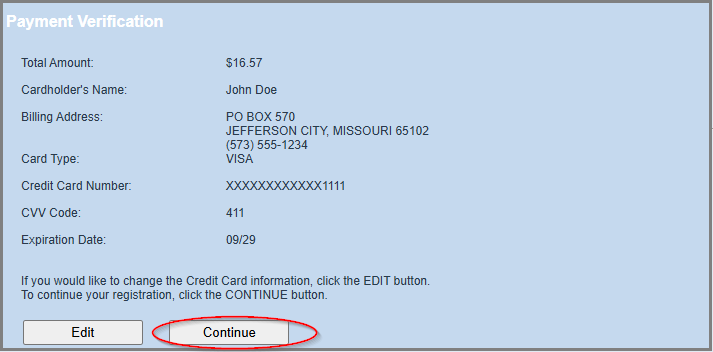
Click the Edit button to re-enter payment information if needed.
or
Click the Continue button to finish your submission and receive a transaction confirmation.
You should receive a Transaction Successful dialog box. Click the Continue button for a printer-friendly confirmation that you submitted your registration and payment.
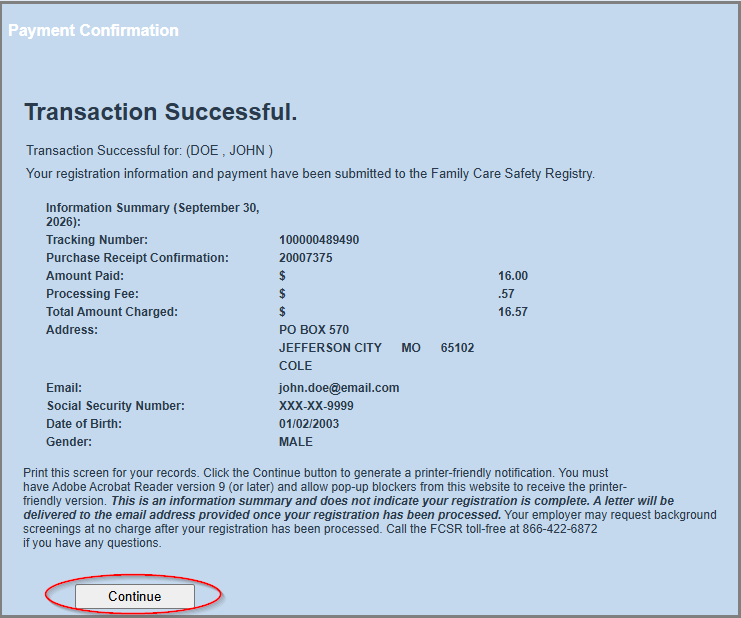
NOTE: If your transaction was declined or failed, you will need to start over.
Your printer-friendly confirmation of submitting your registration and payment will open in a new browser tab. If desired, print it using the Adobe Acrobat Reader print button.
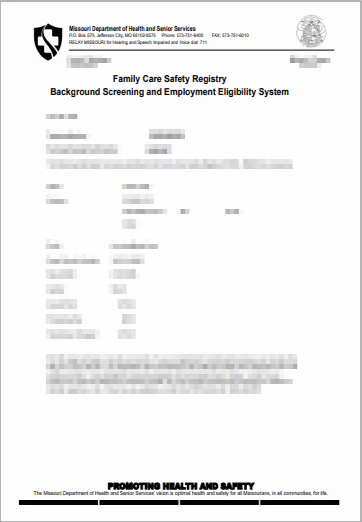
NOTE: The printer-friendly confirmation requires:
- The free Adobe Acrobat Reader software, Version 9 or higher
- Pop-up blocker settings be set to allow pop-ups from *.dhss.mo.gov
You are ready to submit your FCSR registration online!
What happens next? FCSR staff will review your registration. We may contact you with any questions. After the registration is processed, the FCSR will complete an introductory screening. We will send the results attached to an encrypted email. Eligible employers can now request your background information. The FCSR will notify you when your background information is provided. Keep your contact information up to date to ensure you receive these notifications. Inform the FCSR of any name changes as well as contact information changes.
Questions? Call the Family Care Safety Registry at 866-422-6872, weekdays between 9:00 a.m. – 3:00 p.m.