Searching for Person Records
ShowMe WorldCare End User Manual
Searching for Person Records
The best place to search for a specific person is the Search menu, Person tab. Several fields are displayed by default. To help prevent duplicate person entries, the New Person button used to create a new person record will be grayed out until a search is completed.

Search Tips and Tricks
- ALWAYS check the Additional Demographics box to search all identities for a person. If this box is not checked, the search will look only for the primary identity. Unfortunately, ShowMe WorldCare cannot currently be configured to check this box by default.
- For example, if a search is done for Calvin Cordozar Broadus Jr., and the Additional Demographics box is NOT checked, the search would not return any records under his more commonly known alias of Snoop Dogg.
- ShowMe WorldCare searches operate differently than searches in current systems, which may return a list of possible matches. ShowMe WorldCare only returns records that exactly match the search in some way. This can be tricky when aliases or other alternative names have been entered.
- For example, suppose a patient has used multiple names including Orson Pig, Farm Pig, Mighty Pig and Pink Pig. Orson and Farm have been used as the names on condition records, while Mighty and Pink are listed as aliases. No records return with the name Mighty Pig when it is searched since it was never used as the name on a condition. However, the user needs to be aware that the record would not have been returned if Mighty Pig were not listed as an alias on the record.

Clicking the + symbol to the left of the Name field will reveal additional search fields.

Basic Searches
The information below provides some brief guidance on using each of the search fields.
Wildcard: ShowMe WorldCare uses the percent symbol (%) as a wildcard. Wildcards can be used in text or date fields. Fields with which the wildcard can be used include Name, DCN (ID), Address, Zip and SoundEx fields.
The wildcard can be used to search for names with accents or other special characters. For example, the name Ayúda can be searched with Ay%da or Ay%.
The search function ignores hyphens and spaces. For example, the last name of Hyphen-Test can be found by the following searches:
- HyphenTest
- Hyphen Test
- Hyphen Test (2 spaces between words)
Since WorldCare searches are exact, a search for last name “Test” did NOT return the record for HyphenTest as it would expect “Test” to appear at the beginning of the name. Use of the wildcard symbol in front of the name (i.e., %Test) DID return the record for Hyphen-Test.
Case: ShowMe WorldCare searches are NOT case sensitive (e.g., searching for smith should return Smith, SMITH, smith, etc.).
Name: The name search is a “starts with” search. Users should enter the first several letters of each name. The last name should be entered first, followed by a comma and a space, then the first name (e.g., Smith, John).
- To search for a last name only, simply enter the last name (e.g., Smith).
- To search for a first name only, enter a comma followed by a space and then the first name (example: , John).
- To search by initials, enter the last initial, followed by a comma and a space, then enter the first initial (e.g., s, j).
- If a SoundEx search is desired, simply click on the SoundEx checkbox below the search fields. Soundex searches for names that sound the same but are spelled differently (e.g., John and Jon).
- The wildcard can be very useful in searching for name variations. For example, suppose a user needs to search for John Smith but is not sure if the last name is spelled Smith or Smyth. Inserting a wildcard into the search (Sm%th) will search for both possibilities.
Identifier Type/Identifier: Identifier Type is a drop-down list that allows the user to select a specific type of identifier. The default in ShowMe WorldCare is DCN but other options are available. After selecting the desired identifier type in the drop-down, enter the actual Identifier number in the Identifier field to be able to search by that ID number. For example, if a report arrives with only an Inmate ID number, the user could select Identifier Type of Inmate ID and then enter the ID number that appears on the report in the Identifier field.
Date and Age Fields
- The default search for date fields is to enter a specific date. Dates can be entered with dividers (e.g., 08/05/2024) or without dividers (e.g., 08052024).
- ShowMe WorldCare does not accept dates before 1890.
- Date fields in ShowMe WorldCare can also use “t-notation.” Entering “T” in the date field will return the current date. Entering T along with + or – followed by a numeric value will calculate a past or future date.
- Suppose a user is interviewing a new parent who reports that their child was born 7 days ago. The user could enter “T-7” to calculate the baby’s date of birth.
- If an investigator determines that a patient needs to isolate for 10 days, they could enter “T+10” to calculate the end of the isolation period.
- Wildcards can function in the date field. For example, suppose a user knows a patient was born in January 1951 but not the specific date. Entering 01/%%/1951 will return records with a date of birth in the month of January 1951.
- The default search for Age fields is to enter a specific age.
- Age searches return only records that are missing date of birth but have an age entered.
Date and Age Ranges: For both date and age fields in ShowMe WorldCare, clicking on the range option next to the field name will open From and To range boxes. The user may enter one or more dates to search for records.
- If only the From date is entered, ShowMe WorldCare will search starting with that date through all later dates.
- If only the To date is entered, ShowMe WorldCare will search up to that date as the latest possible date.
- Age searches return only records that are missing date of birth but have an age entered.
Address: Standardized postal service abbreviations must be used or ShowMe WorldCare will not return records. For example, use “930 Wildwood Dr” rather than “930 Wildwood Drive” when searching. (During entry of records, standardized postal service abbreviations should be used so that records will geocode and automatically be assigned to the correct jurisdiction.) For more information on standardized postal services abbreviations, please visit USPS.com. Do not use commas when searching for addresses in ShowMe WorldCare (e.g., use 930 Wildwood Dr Jefferson City rather than 930 Wildwood Dr, Jefferson City).
Zip: Zip code portion of the person’s address.
Phone: Person’s phone number
DOD: Date of death (range available)
State Number: State Number is used by the HIV condition and reflects the eHARS StateNo. Users not granted access to the HIV condition security group will not be able to see this field on Search.
Person Status: Select whether to search for persons who have status Active, Deceased or Unknown.
Status Flag: The Status Flag field appears on the Search screen but is not utilized in ShowMe WorldCare and should not be searched.
Person ID: A unique identifier assigned to the Person record by the ShowMe WorldCare application.
Medical Record Number: A Medical Record Number, or MRN, may be available for searching if it included in reports from providers or manually entered.
Created: Date the record was created (range available)
Advanced Searches
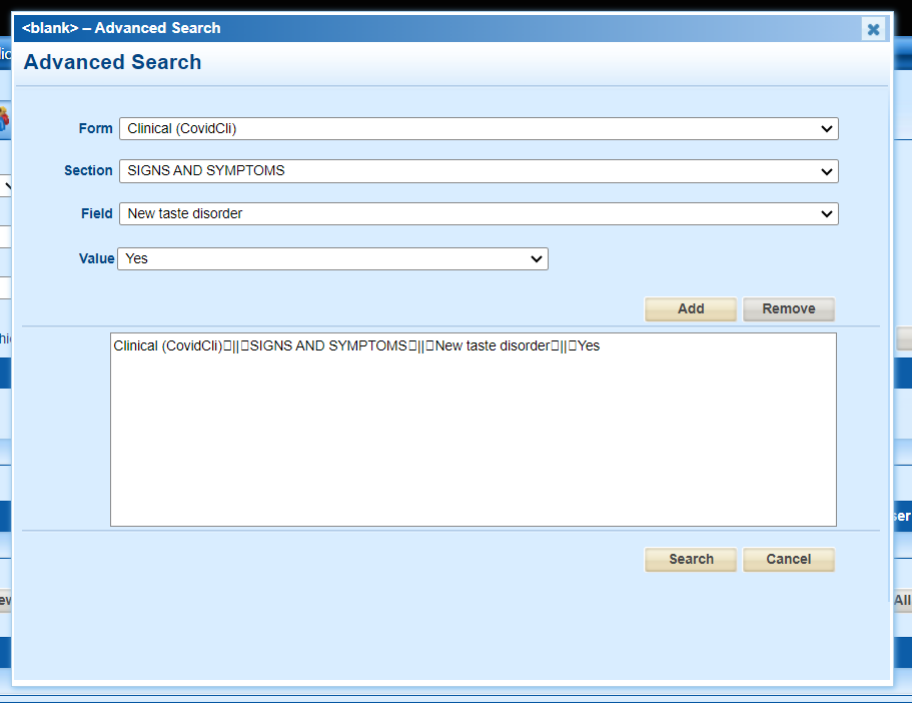
The Advanced Search option allows users to search for records that meet very specific criteria. Any question on the forms used to collect information on the conditions in ShowMe WorldCare can be queried using this function.
In this example, the user wants a list of individuals who reported a new taste disorder as a symptom of COVID-19. They selected the COVID Clinical form, Signs and Symptoms section, New taste disorder field, and a response of Yes, the patient has a new taste disorder. The user then clicked Add to move this query to the search box. Clicking the Search button at the bottom of the window will execute the search and return any records that meet this criteria.