
WIC Application Access Instructions
Missouri Department of Health and Senior Services – WIC Program
WIC INVOICE, WIC LAP, WIC REPORTS, WIC BF APPLICATION, MOPHIMS, MOWINS, MOHSAIC, WIC Direct, MO FTP and LPHA Generic Email Account
Revised 12/2024

For ASAP assistance, contact the WIC Help Desk at 800-554-2544 or email WICHelpDesk@health.mo.gov.
To request access to WIC INVOICE, WIC LAP, WIC REPORTS, WIC BF APPLICATION, MOPHIMS, MOWINS and MOHSAIC, an ASAP must be submitted. This manual provides instructions for submitting ASAP requests along with additional requests for WIC Direct and MO FTP access.
The ASAP form can be accessed on the web at: https://webapp02.dhss.mo.gov/asap_web/ASAPLogin.aspx
New User
WIC Application Access Instructions
Step 1
Log in to the Automated Security Access Process (ASAP) site: https://webapp02.dhss.mo.gov/asap_web/ASAPLogin.aspx

A ‘NEW USER’ profile can be completed with the following information.

Step 2
Select who you are completing the ASAP request for, and then click ‘Next.’


Step 3
Complete the ASAP form. Detailed instructions are outlined by application type in this manual.

Step 4
The submitted form will be sent to the Local Security Officer (LSO) for that agency. It will have to be approved by the LSO before it is sent to the Program Security Officer (PSO) at the state agency. Once the ASAP is approved by the PSO, it will be sent to ITSD for processing.
Step 5
Once the ASAP has been processed and approved, an email will be sent to the email address listed at the top of the ASAP form. The state agency will only forward notifications to approved internal email addresses. Do not list any personal email accounts such as Yahoo, Gmail, etc.
Track all ASAP forms submitted. If a notification regarding access approval/denial is not received within 7 to 10 business days, call the MOWINS Help Desk.
WIC INVOICE
WIC Application Access Instructions
For WIC INVOICE access, the following ASAP must be submitted. To complete the ASAP, all (*) required fields must be entered. This access is only being maintained for historical purposes currently.

- When staff leave an agency, an ASAP must be submitted to remove access. The ‘Request Type’ will be “DELETE ACCESS.”
- When staff have a name change, an ASAP must be submitted to update the user profile. The ‘Request Type’ will need to be “CHANGE ACCESS.” Staff should enter notes explaining why this request is being made in the ‘Comments’ section and include the previous name and the new one.
WIC LAP
WIC Application Access Instructions
For WIC LAP access, the following ASAP must be submitted. To complete the ASAP, all (*) required fields must be entered. This access is only being maintained for historical purposes currently.
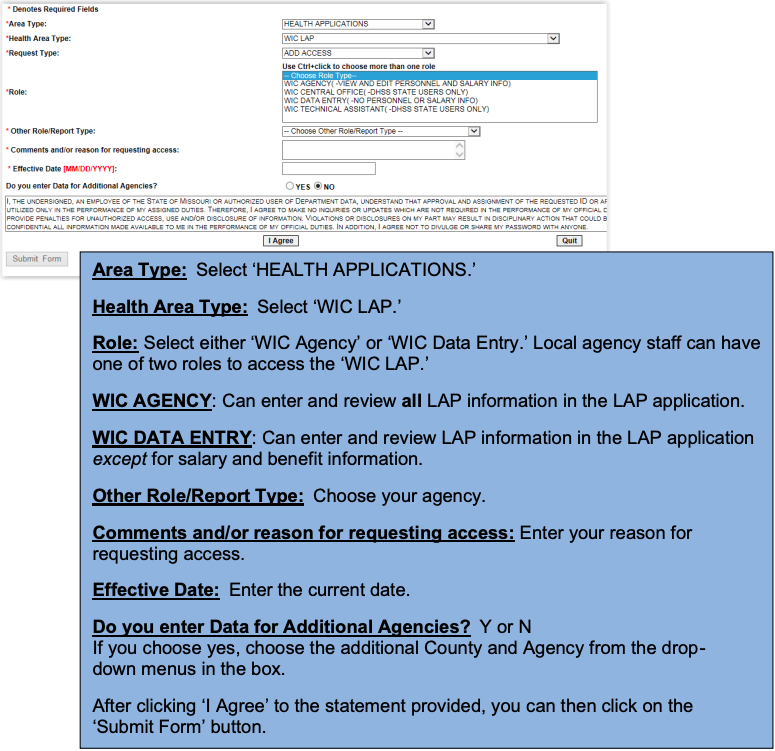
- When staff leave an agency, an ASAP must be submitted to remove access. The ‘Request Type’ will be “DELETE ACCESS.”
- When staff have a name change, an ASAP must be submitted to update the user profile. The ‘Request Type’ will need to be “CHANGE ACCESS.” Staff should enter notes explaining why this request is being made in the ‘Comments’ section and include the previous name and the new one.
- If user credentials existed last year, please call the ITSD Help Desk to determine if an ASAP request is needed or if the account can be reset.
WIC REPORTS
WIC Application Access Instructions
For access to WIC REPORTS or Crystal Reports, the following ASAP must be submitted. To complete the ASAP, all (*) required fields must be entered.

- When staff leave an agency, an ASAP must be submitted to remove access. The ‘Request Type’ will be “DELETE ACCESS.”
- When staff have a name change, an ASAP must be submitted to update the user profile. The ‘Request Type’ will need to be “CHANGE ACCESS.” Staff should enter notes explaining why this request is being made in the ‘Comments’ section and include the previous name and the new one.
WIC BF APPLICATION
WIC Application Access Instructions
For WIC BF APPLICATION access, the following ASAP must be submitted. To complete the ASAP, all (*) required fields must be entered. This access is only being maintained for historical purposes currently.

- When staff leave an agency, an ASAP must be submitted to remove access. The ‘Request Type’ will be “DELETE ACCESS.”
- When staff have a name change, an ASAP must be submitted to update the user profile. The ‘Request Type’ will need to be “CHANGE ACCESS.” Staff should enter notes explaining why this request is being made in the ‘Comments’ section and include the previous name and the new one.
MOPHIMS
WIC Application Access Instructions
MOPHIMS Webpage and Training Resources
For MOPHIMS access, the following ASAP must be submitted. To complete the ASAP, all (*) required fields must be entered.

- When staff leave an agency, an ASAP must be submitted to remove access. The ‘Request Type’ will be “DELETE ACCESS.”
- When staff have a name change, an ASAP must be submitted to update the user profile. The ‘Request Type’ will need to be “CHANGE ACCESS.” Staff should enter notes explaining why this request is being made in the ‘Comments’ section and include the previous name and the new one.
MOWINS
WIC Application Access Instructions
For MOWINS access, the following ASAP must be submitted. To complete the ASAP, all (*) required fields must be entered.

- If a staff person is requesting a new role, an ASAP request must be submitted with the ‘Request Type’ set to “CHANGE ACCESS.” Staff should enter notes explaining why this request is being made in the ‘Comments’ section and if the previous role needs to be removed.
- If a staff person is requesting a name change, an ASAP request must be submitted with the ‘Request Type’ set to “CHANGE ACCESS.” Staff should enter notes explaining why this request is being made in the ‘Comments’ section and include the previous name and the new one.
- When staff leave an agency, an ASAP must be submitted to remove access. The ‘Request Type’ will be “DELETE ACCESS.”
- If a staff person is transferring or needs access to an additional agency, an ASAP request must be submitted with the ‘Request Type’ set to “OTHER OR TRANSFER.” In the ‘Comments’ section, staff should enter notes explaining why this request is being made. The reason for this request is indicated in the ‘Comments’ section if access needs to be removed from the previous site.
Below is a list of local agency roles and the permissions specific to each available role in MOWINS. Please refer to the following information when determining which access to request.
Primary Roles
- AGENCY BF COORDINATOR/DBE: This role has similar access as the Agency Peer Counselor but has permissions to set up EBT accounts, add income information, assign risk factors and resolve high-risk status.
- AGENCY CALENDAR MAINTENANCE: This role can create calendars and resources for scheduling agency appointments if they use the MOWINS Scheduler. This role may be added in conjunction with any other role.
- AGENCY CLERK: This role has limited access: information related to health and nutrition can be viewed but not edited or created. This role can update basic demographic information and immunizations, and add income and household information.
- AGENCY CPA: This role has full access to participant records for manipulation, excluding the ability to resolve high-risk factors.
- AGENCY HPA: This role has similar access as Agency Clerk but can add bloodwork and height/weight measurements and add and edit health information.
- AGENCY NUTRITION COORDINATOR: This role has the same MOWINS access as the Agency Nutritionist. This role coordinates nutrition services, provides nutrition education and counseling, and supervises nutrition services staff.
- AGENCY NUTRITIONIST: This role includes access for all other roles (listed in this section) in MOWINS, plus additional access to resolve high-risk participants.
- AGENCY PEER COUNSELOR: This role grants access to manipulate alerts, appointments, breastfeeding contacts and notes, breast pump management, demographics, nutrition education and referrals. (Peer Counselors cannot be a Certifier, Nutritionist, Nutrition Coordinator or CPA.)
- AGENCY VIEW: This role is only for viewing participant records. They are only accessible for viewing. Participant records cannot be manipulated.
- AGENCY WIC CERTIFIER: This role grants full access to manipulate participant records, excluding the ability to resolve high-risk factors.
- AGENCY WIC COORDINATOR: This role has similar access as the Agency Clerk but allows additional permissions to view Protected Alerts and Notes in MOWINS and permissions in the System Administration module. (The role is only for the WIC Coordinator in the agency.)
- AGENCY WIC SHOPPING ASSISTANT: This role has limited access to MOWINS. Information related to health and nutrition can be viewed but not added by this role. This role can update basic demographic information, schedule appointments and maintain alerts and notes.
Benefit Adjustments
Select only one of these roles for adjusting benefits. Neither of the roles below is required with a primary role.
- AGENCY BENEFITS VOIDING: This role can void current and future benefits. Clerks, HPA and WIC Coordinators can request this additional access.
- AGENCY FULL FOOD ADJUSTMENT ACCESS: This role allows full permissions to the Food Adjustment Wizard in MOWINS, allows the voiding of current and future benefits, adding more formula and changing out a food item already issued. Limited to BF Coordinators, Nutrition Coordinators, Nutritionists, CPAs and Certifiers. (Role includes the permissions of AGENCY BENEFITS VOIDING.)
Please Note
- Only the WIC Coordinator should be assigned the WIC Coordinator role.
- Only the Nutrition Coordinator should be assigned the Nutrition Coordinator role.
- Peer Counselors cannot be Certifiers, Nutritionists, Nutrition Coordinators or CPAs.
- All other roles labeled “STATE” are for state agency employee use only.
MOHSAIC
WIC Application Access Instructions
For access to MOHSAIC to check for adjunct eligibility, the following ASAP must be submitted. To complete the ASAP, all (*) required fields must be entered.

- When staff leave an agency, an ASAP must be submitted to remove access. The ‘Request Type’ will be “DELETE ACCESS.”
WIC Direct, MO FTP and LPHA Generic Email Account
WIC Application Access Instructions
WIC Direct
To request WIC Direct access, email WICHelpDesk@health.mo.gov with the user’s email, full name and agency. The user MUST have active MOWINS access prior to requesting WIC Direct access.
MO FTP
To request MO FTP access, email WICHelpDesk@health.mo.gov with the user’s email, full name, agency and role. Upon request, access to MO FTP is limited to WIC Coordinators, Nutrition Coordinators and some Administrators.
LPHA Generic Email Account
User provisioning has moved away from using DHSS ASAP for active directory, email and other network access. To request access to the LPHA generic email account used by the agency to receive online interest forms, fill out the DHSS User Provisioning Form located at https://dhssnet.state.mo.us/index.php under the ITSD tab. Once the form is completed, attach it to an ITSD Service Portal Incident.
